How to plan recurring weekly lessons without a calendar app
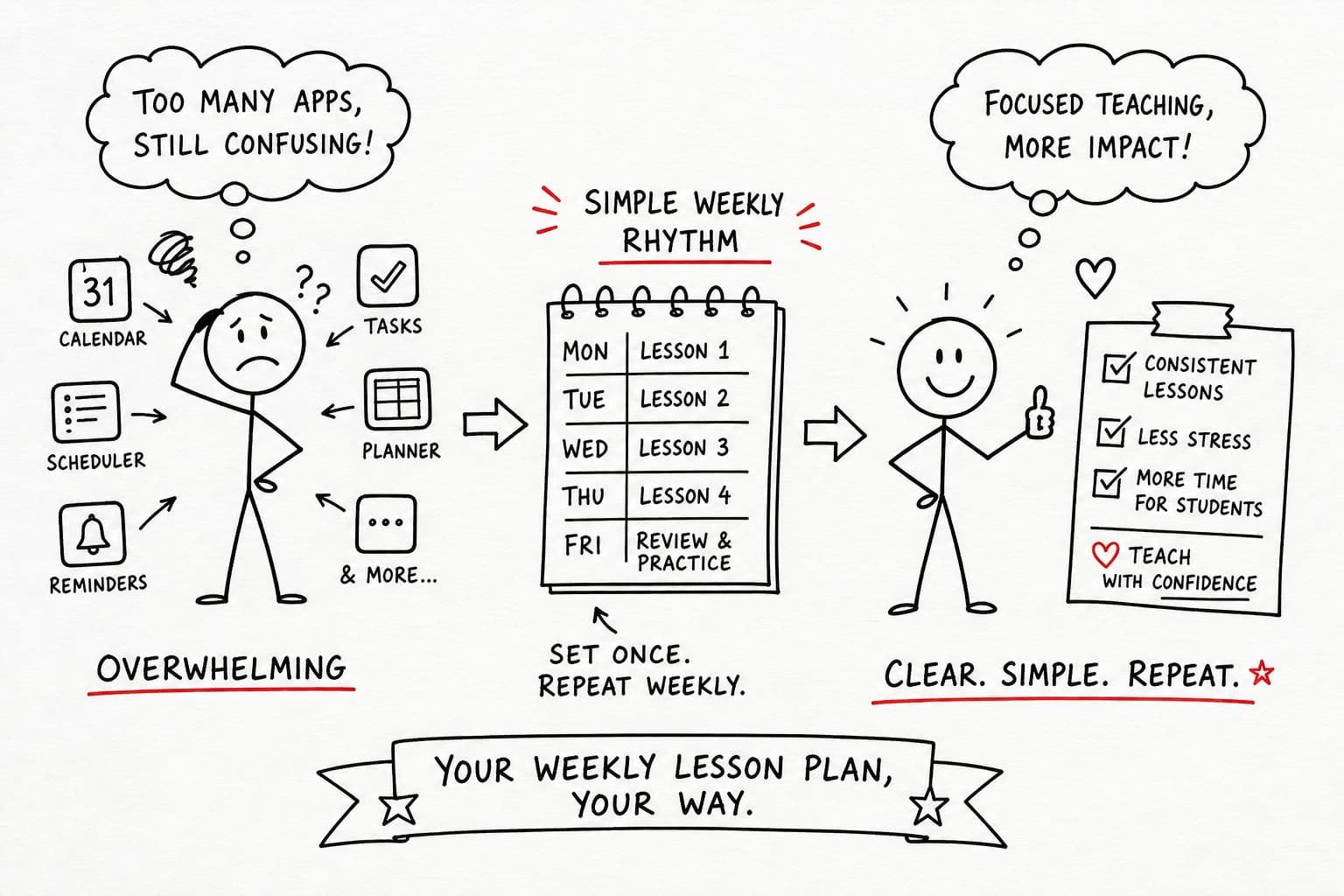
How do I plan recurring weekly lessons without a calendar app? It's a question most teachers and tutors eventually land on after the same frustrating experience: open Google Calendar, create a recurring event, and call it a schedule. It holds together for a week or two. Then a student cancels, a makeup needs slotting in, and suddenly you're staring at a dialog box asking whether to edit "this event," "this and following events," or "all events." One wrong click and your entire recurring series is gone. The back-and-forth to fix it takes longer than the lesson itself.
The deeper problem isn't the interface. Calendar apps were built for meetings and appointments, not for educators. They have no concept of a lesson slot, a student group, or a repeating weekly timetable organized by subject. You end up forcing educational structure onto a general-purpose tool, then patching the gaps manually each week. That's where dedicated scheduling tools come in; purpose-built software like ScheduleMaker exists precisely because calendar apps fall short for teachers and tutors.
This article covers the practical alternatives for planning recurring weekly lessons without a calendar app, including weekly lesson schedule spreadsheets, paper planners, and manual workflows, and closes with why a purpose-built desktop tool is the cleanest fix for anyone managing a recurring weekly schedule.
Why Calendar Apps Struggle With Recurring Weekly Lessons
The recurring event problem nobody warns you about
Calendar apps treat recurring events as a single event with clones. When you need to edit one lesson in a series, you're forced to choose between changing just that instance, changing everything from that point forward, or changing every event in the series.
For a tutor with 20 students across 10 weekly slots, that decision carries real consequences every time something shifts. The risk of accidentally wiping out an entire recurring chain isn't hypothetical; it's a common frustration reported across tutor forums and support threads.

Cancellations and makeups compound the problem quickly. There's no clean way to record that Tuesday's 4pm slot was skipped and rescheduled to Thursday without creating duplicate entries or breaking the original recurring chain.
You end up with a calendar that reflects what you intended rather than what's actually happening, and untangling it eats into the time you should be spending on lessons. If you're comparing calendar apps with purpose-built scheduling software, you can learn more. See a comparison of Google Calendar and scheduling apps here.
Missing structure that educators actually need
Calendar apps have no built-in concept of subjects, student names, lesson types, or educational time blocks. To be fair, they can store event titles and descriptions, but that's exactly the problem.
You're using color labels and free-text fields to simulate structure that should be native to the tool. That's a constant workaround, not a solution. When you're managing five subjects across three student groups, the workaround becomes its own full-time job.
No grid view mirrors a real weekly timetable. Calendar apps show a stream of events; teachers and tutors work from a clean Monday-through-Friday grid with named time slots. Those are fundamentally different ways of organizing time. On top of that, school networks are often restricted, and home Wi-Fi goes down: a cloud-dependent calendar becomes a liability when you need your schedule to be there and work.
| Option | Free | Offline | Best For |
|---|---|---|---|
| Google Sheets | ✓ | Partial | Small schedules |
| Excel | ✓ | ✓ | Offline spreadsheets |
| Paper planner | ✓ | ✓ | Simple schedules |
| Dedicated schedule maker | ✓ | ✓ | Recurring weekly lessons |
Recurring weekly lesson planning without a calendar: your practical options
How to set up a simple recurring weekly lesson schedule spreadsheet
The simplest spreadsheet approach uses a grid with days of the week across the columns and time blocks or student names down the rows. Build it once as a master template, then duplicate the tab each week. In Google Sheets, right-click the tab and select "Duplicate." In Excel, right-click and choose "Move or Copy," then check "Create a copy." Rename the copy with the week's date, and your master stays untouched.
The key discipline is keeping one clean master tab that never gets edited directly. Each week is a copy of that master, and you only update what changed: a subject topic, a new student note, a rescheduled slot. You can also use a formula to drive dates from a single start-date cell, so duplicating the sheet automatically shifts all the day labels by one week.
This gives you the closest thing to a reusable recurring lesson planner template that a spreadsheet can produce, without paying for anything. For practical, step-by-step ideas on using spreadsheets specifically for lessons, see lesson planning with Google Sheets.
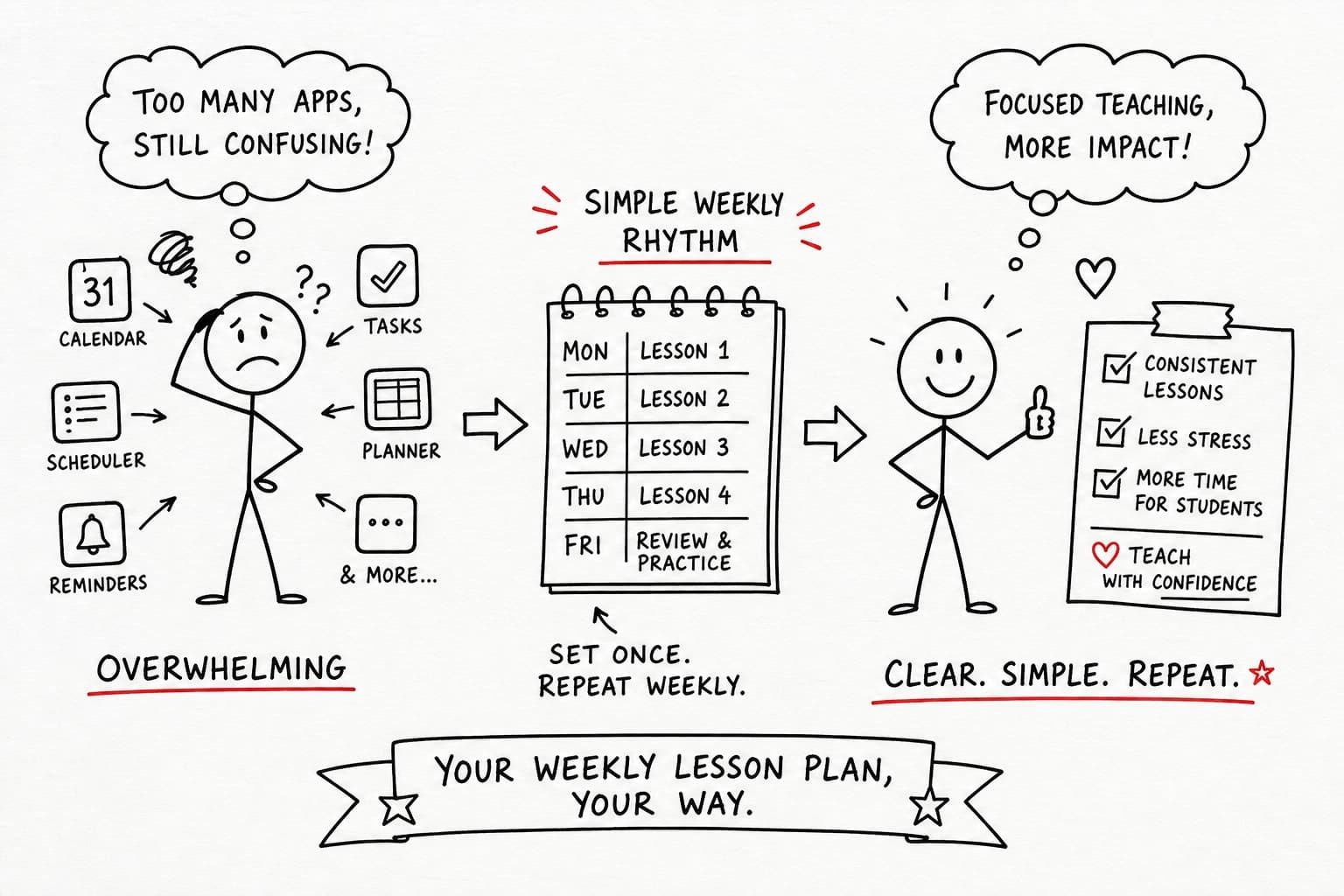
Some teachers eventually move from spreadsheets to dedicated desktop scheduling software as their timetable grows.
Sharing a lesson schedule without giving edit access
If students or parents need to see the weekly schedule, export the sheet as a PDF and send it by email, text, or a class messaging app. PDFs lock the format and prevent accidental edits. Google Sheets also supports view-only share links: set the permission to "Viewer" and recipients can open the shareable lesson schedule on any device without being able to change anything.
The limitations of spreadsheets are real, though. They require manual duplication week after week, offer no reminder functionality, and Google Sheets still requires internet access. Excel works offline but adds friction when sharing. The system works, but it puts the entire process on you to manage manually every time.
Paper planners and printable timetables that still earn their place
How effective paper lesson planners for tutors are organized
Paper lesson planners used by teachers are typically organized by week, with a Monday-through-Friday grid and rows for each subject or class period. Better designs include sections for objectives, materials, activities, and notes alongside each time block. Printable weekly timetables work well for recurring lessons because the structure repeats automatically: print enough copies for the term at the start of the school year and fill in the details each week.
Many tutors prefer a paper planner over digital tools because there's no battery, no login, and no loading screen. If you want printable or designed templates, designers and template libraries such as Canva's lesson plan templates make it easy to create polished weekly planners you can print.
If you're deciding between printable planners and dedicated scheduling software, our comparison may help.
Where paper falls short for active tutoring schedules
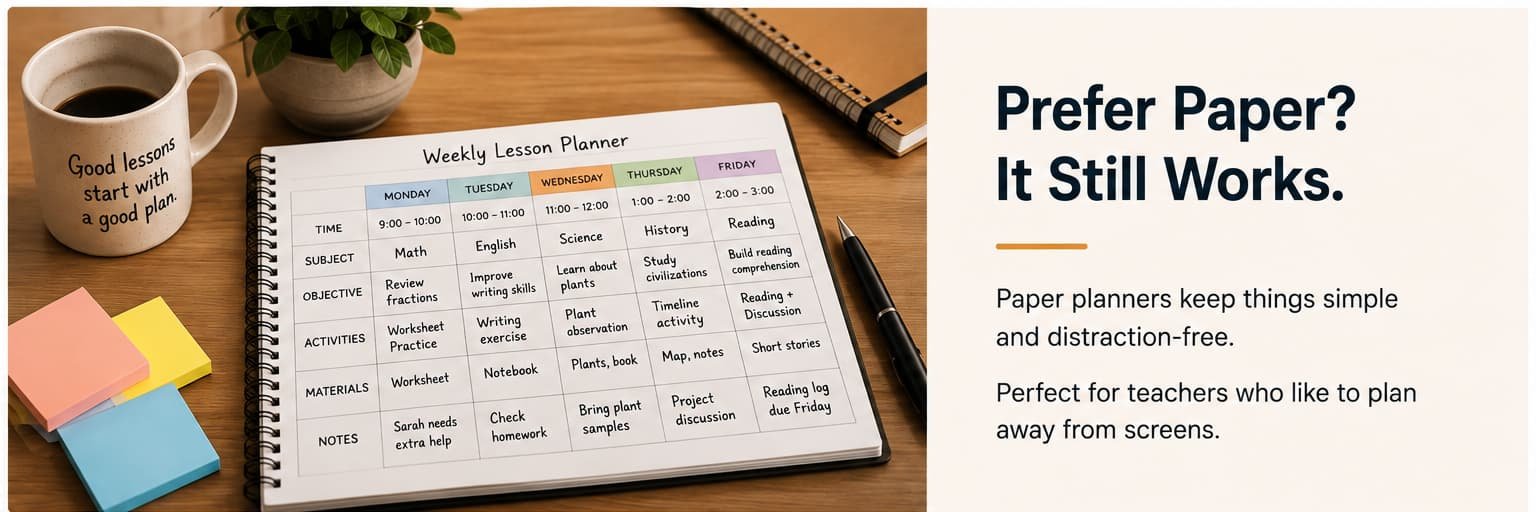
Paper handles the visual layout well but breaks down when students cancel, reschedule, or when you're managing more than four or five recurring students. Erasing and rewriting the same information gets tedious fast, and messy corrections make the schedule harder to read at a glance. There's no way to share a paper schedule instantly, and nothing sends reminders automatically. Paper is a reliable reference tool, but it puts all the operational work entirely on you.
Manual workflows for reminders, cancellations, and makeups
Building a simple reminder system without automation
Without a calendar app generating reminders automatically, the most reliable substitute is a short text or email sent the evening before each lesson. A quick template message works well: date, time, location or video link, and a note about the cancellation window. In practice, this approach reduces no-shows noticeably, and the message takes under a minute to send once you have a template ready.
The end-of-session confirmation is also underused. Before a student leaves, verbally confirm the next session and note it in front of them. This creates a natural checkpoint without any software. For recurring weekly lessons, that brief confirmation at the end of each session is often enough to keep the schedule intact.
A clear cancellation and makeup policy that works manually
Without automated scheduling software, consistency is what protects your time. Write down your cancellation policy, 24-hour notice requirement, no-show fee, and makeup window; share it with every student at the start, and apply it the same way every time. Inconsistency creates disputes; a written policy shared upfront eliminates most of them. If you need examples or a template to adapt, guides like how to create a cancellation policy can help you draft clear terms that are fair and enforceable.
Track cancellations and makeups in a simple spreadsheet or notebook with these fields: student name, missed date, whether notice was given on time, whether a makeup was booked, and whether a fee applied.
This record keeps you consistent and surfaces patterns if a particular student cancels repeatedly. When a cancellation comes in, offer two or three alternate makeup slots immediately: the faster you close the rebooking loop, the fewer makeups fall through entirely.
Why a dedicated desktop tool outperforms all these workarounds
The problem with patching together a scheduling system
Spreadsheets, paper planners, and manual reminder workflows each solve one part of the problem but leave the others open. You end up maintaining three separate systems: a spreadsheet for the schedule, a notebook for cancellations, and a message thread for reminders. Nothing connects them. Changes don't carry across automatically, so you're reconciling the same information in multiple places every week.
A consistent weekly structure also makes it much easier to plan repeating lessons efficiently.
Over time, this patchwork creates the exact friction it was meant to avoid: missed updates, inconsistent records, and a schedule that lives in four places at once. For tutors managing multiple recurring students, the maintenance cost of these workarounds grows quickly. The system starts to feel like a second job.
What a purpose-built lesson scheduler actually provides
A dedicated lesson scheduling tool is built around the repeating weekly timetable as its core concept, not as a workaround. Time slots, subject names, and student groups are first-class features, not color-coded event titles in a general calendar. The structure holds week over week without manual duplication or patching.
Tools in this space take different approaches. Web-based planners like Planbook focus on lesson planning features and integrations, while offline-first desktop apps avoid internet dependency entirely. The key is choosing a tool whose design matches your workflow.
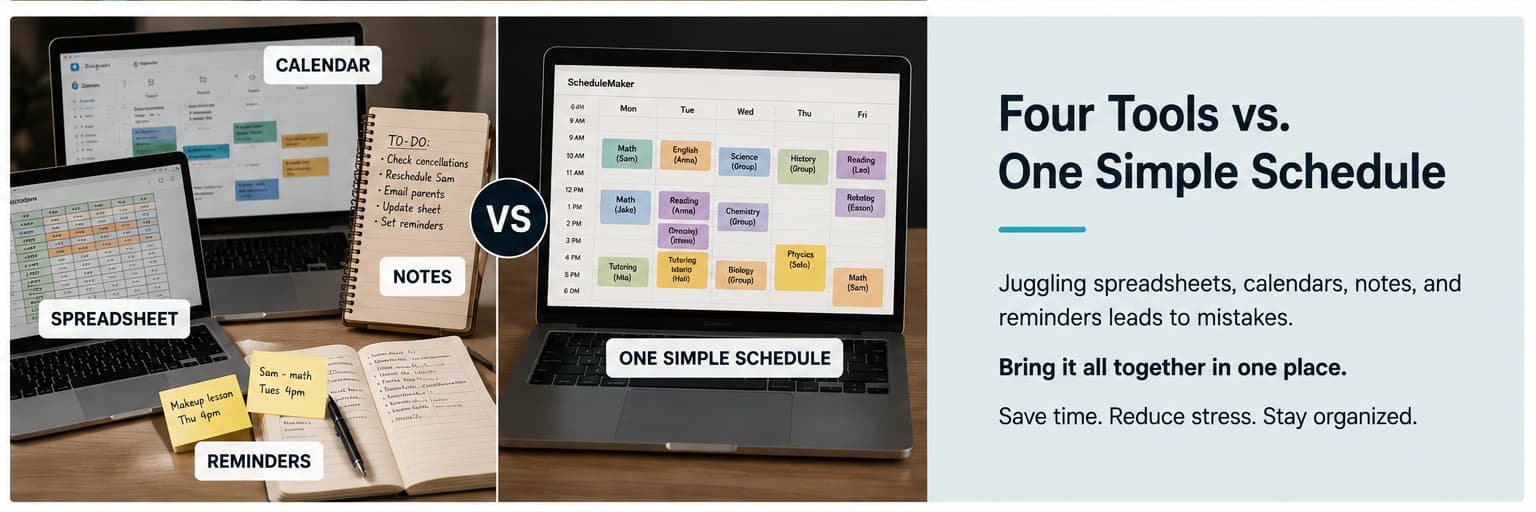
Tools in this category that work offline, require no subscription, and store data locally remove the internet dependency and recurring cost that make cloud calendar apps frustrating for educators. ScheduleMaker was built to fill exactly this gap: a focused, offline Windows desktop app designed specifically for teachers and tutors who need a clean, recurring weekly schedule without login walls or monthly fees.
How ScheduleMaker handles recurring lesson scheduling differently
The visual weekly timetable built for educators
ScheduleMaker organizes your schedule as a clean visual weekly grid, time slots and lesson blocks laid out the way a real teaching timetable looks, not as a stream of calendar events. You set up your recurring weekly structure once, and it holds.
Changing a single slot doesn't affect the rest of the week or any other week in your schedule. The free version lets you test the layout with a core set of time slots before committing, with no account required and no internet connection needed after the initial download. If you're specifically looking for Windows scheduling desktop software, see our detailed comparison here.
Pro features for educators managing a full schedule
The Pro version unlocks unlimited time slots and import/export functionality, useful for tutors with ten or more recurring students, or for small tutoring centers managing several instructors' weekly schedules without enterprise-level software costs.
Because all data is stored locally on your Windows PC, your schedule is private, fast, and available whether or not you have internet access.
For teachers working in schools with restricted networks, or tutors who prefer to keep student data off cloud servers, local storage is a meaningful practical advantage over any web-based alternative. No syncing, no server outages, no privacy policy changes to worry about.
The right tool for the job makes a real difference
Calendar apps aren't bad tools; they're built for a different problem. Recurring event management for meetings and appointments is exactly what they do well. Planning recurring weekly lessons for educators is not, and trying to force one into the other creates ongoing friction that compounds over a full school year.
If you're managing one or two students with simple recurring schedules, a weekly lesson schedule spreadsheet or a printable tutor planner might be all you need right now. Both are legitimate starting points that cost nothing to set up.
For anyone managing a fuller schedule, the cleaner answer to "how do I plan recurring weekly lessons without a calendar app?" is a tool built specifically for that purpose. Recurring weekly lessons need a recurring-first design: one that holds your structure week over week without manual duplication, internet dependency, or hacked-together workarounds. ScheduleMaker's free version requires no account and takes minutes to set up. If you've been fighting your calendar app every week, it's worth seeing what a tool actually built for educators feels like to use.
Learn more about how ScheduleMaker compares with other offline scheduling tools.