The Best Offline Scheduling Apps for Teachers in 2026
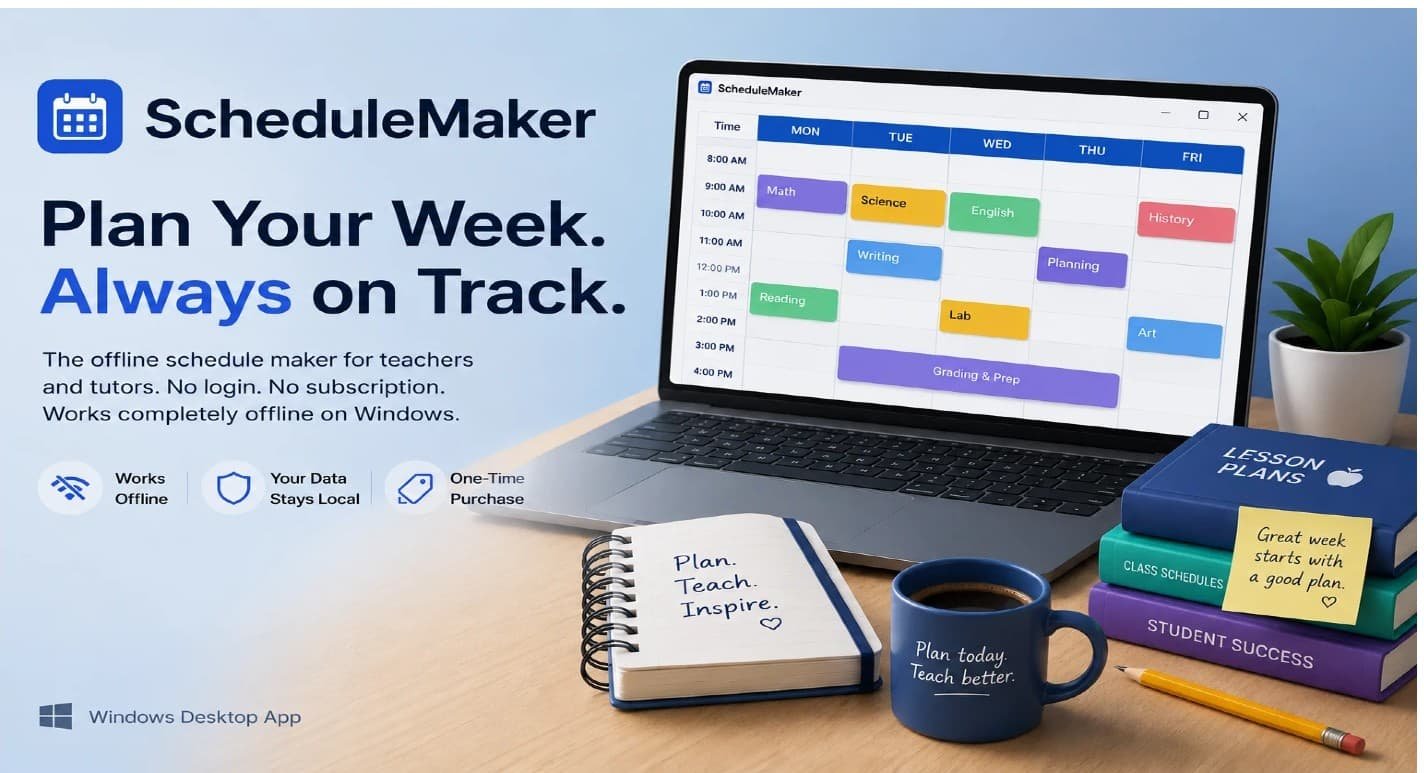
The Wi-Fi drops at school. The cloud app spins. Your carefully built week disappears behind a loading screen. This isn't a rare scenario, it happens in computer labs, in rural districts, and on the morning you need your plan the most.
So what is the best offline schedule app for teachers in 2026? This guide compares the top offline scheduling apps for teachers across four criteria that actually matter: ease of use, privacy, platform support, and cost model.
One of the tools on this list, ScheduleMaker, is a Windows desktop app built specifically for educators who refuse to depend on the internet to do their jobs. The rest of the field runs the full range from solid mobile-only tools to general-purpose apps that teachers have repurposed for lesson planning. By the end, you'll know exactly which app fits your setup
Top Offline Scheduling Apps for Teachers
True offline vs. "works until you lose signal"
Not every app that claims offline support actually delivers it under real conditions. There's a meaningful difference between apps that store all data locally on your device and apps that cache temporarily and break down after extended offline use. Many popular web-based planners, including widely used tools like Google Classroom add-ons and web-first lesson planners, fall into the second category: offline is an afterthought, not a design principle
This distinction matters in real classrooms. When you're three periods into your day and the school network goes down, you need your lesson schedule to load instantly, not stall behind a sync error. A true offline teacher schedule organizer works identically whether you're connected or not, because connectivity was never part of its architecture to begin with.
Privacy, local data, and who actually owns your schedule
When a cloud-based teacher scheduler sends your data to third-party servers, you're sharing more than you might realize. Session times, student names, and recurring lesson patterns all paint a detailed picture of your teaching practice, and that data lives on someone else's infrastructure. Local data storage means your schedule stays on your machine.
This matters especially when your scheduling involves student-related information. FERPA doesn't explicitly govern scheduling apps, but the practical implication is straightforward: student data belongs in controlled environments, not on commercial cloud servers you don't manage. Choosing an offline teacher planner app that stores data locally is a genuine privacy decision, not just a technical preference.
The cost model question: subscription vs. one-time purchase
Subscription fatigue is widespread among educators. Many teachers pay monthly fees for apps they open a few times a week, and those fees add up fast across the tools a typical educator juggles. A one-time purchase model changes that math entirely: you pay once, you own it, and the price doesn't creep up at every renewal cycle.
One-time pricing also signals something about how the software is built. Developers who sell perpetual licenses aren't dependent on locking you into a recurring contract, and that can produce more focused, more reliable tools. When the pricing model aligns with your interests instead of working against them, the product usually reflects that.
Other offline-capable apps worth knowing about
iDoceo (iOS and iPadOS)
iDoceo is the strongest offline option for Apple-based classroom teachers. It stores everything locally on the device by default, supports creating and editing events, viewing timetables, and attaching files without a connection. Export options include PDF, XLS, and CSV, with backup support for Dropbox, Google Drive, iCloud, and WebDAV for schools that prefer keeping backups on their own servers.
Platform coverage is its key constraint: iDoceo runs exclusively on iOS and iPadOS. If you work primarily on a Windows PC or an Android device, it simply isn't available to you. For teachers already inside the Apple ecosystem, it's a well-built, privacy-respecting offline lesson scheduling tool that handles grading and planning integration alongside the schedule itself.
Kuraplan (web and mobile with offline mode)
Kuraplan offers genuine offline access for lesson planning, note-taking, and weekly organization. Changes sync automatically when the internet returns, which suits teachers who move between connected and disconnected environments throughout the day. Its weekly planner gives you a full view of your teaching week and lets you switch between semester templates.
Its architecture is the key distinction. Kuraplan is a cloud-first platform with offline capabilities layered on top, not a local-first application. On Windows, it runs in a browser rather than as a true desktop app, and its AI-powered features require an active internet connection to function. It's a capable tool, but its offline mode is a convenience feature rather than a core design commitment.
Lesson Planner for Teachers (Android)
Planboard is a capable cloud-connected planner, free for individual teachers and available across web, iOS, and Android. Reliable offline use, however, isn't part of what it delivers. When the connection drops, core planning functions become unavailable or inconsistent, which defeats the purpose for teachers in environments with unreliable school networks.
General-purpose tools like Notion and Trello require significant workarounds to function as lesson schedulers and provide no timetable structure out of the box. Google Calendar offers limited offline viewing in some configurations, but it has no recurring lesson planning features and no time-block builder designed for teaching workflows. These tools work well when connected; they weren't built for the days when a connection isn't guaranteed
ScheduleMaker: the Windows desktop pick built for offline lesson planning
Why ScheduleMaker is built differently from every other app on this list
ScheduleMaker is a dedicated Windows desktop app designed from the ground up for recurring weekly lesson scheduling. In our review, we did not identify another Windows-native, offline-first scheduler built specifically for teachers.
There's no login screen, no internet required after installation, and according to the vendor, no data leaves your PC. Everything you build stays on your machine, accessible any time, whether your school's network is up or not.
Most scheduling tools teachers end up using were built for general productivity and later adapted for education. ScheduleMaker wasn't. It was built specifically for teachers and tutors from day one, which means the interface is organized around how educators actually think about their week: time blocks, recurring lessons, and a clean visual layout that doesn't require a tutorial to navigate.
Free version vs. Pro: what you actually get at each tier
The free version of ScheduleMaker provides full offline functionality with no account creation required. For a teacher with a straightforward weekly structure, that's often enough to get the job done. You can download, install, and start building your schedule within minutes without entering a single credential.
The Pro version unlocks additional features, including expanded time slots and import/export capabilities, through a one-time purchase with an activation key. Tutors managing multiple students or homeschool co-ops running complex multi-subject schedules will find the upgrade worthwhile. There's no fee, no renewal reminder, and no feature that gets paywalled after you've settled into a routine. For current pricing and tier details, check ScheduleMaker's official product page
Quick setup, no account required
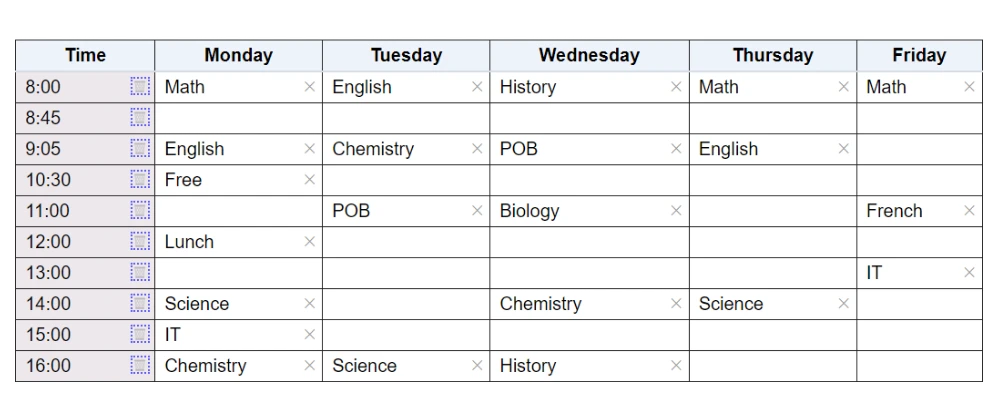
The install-and-go workflow is exactly what it sounds like: download the installer, run it, open the app, and start building your weekly schedule. The recurring weekly schedule builder uses a visual time-block layout that makes it easy to see your full week at a glance and spot gaps or conflicts before they become a problem in the classroom.
There's no dashboard to configure, no sync service to initialize, and no permissions to grant. You're scheduling within minutes of opening the app for the first time. That simplicity isn't accidental, it's the entire point of building a desktop-first, offline-first teacher calendar app. You can also preview functionality and walkthroughs on the ScheduleMaker Demo, See How It Works.
How to choose the best offline schedule app for teachers:
ScheduleMaker: the Windows desktop pick built for offline lesson planning

Designed for teachers and tutors: ScheduleMaker is a Windows Desktop app built from the ground up for recurring weekly lesson scheduling.

100% Offline: No login. Your data stays local. No internet required after installation. Nothing you create leaves your PC.

Free version available: Pro with one time purchase The free version includes everything you need to get started. Upgrade once to unlock more time slots and import/export capabilities.

Quick to setup. Easy to use. Install, open and start planining in minutes with a clean visual weekly timetable.
Platform Support
Which platforms each app actually supports
| App | Windows | macOS | iOS/iPadOS | Android | Web Browser |
|---|---|---|---|---|---|
| ScheduleMaker | ✅ | -- | -- | -- | -- |
| iDoceo | -- | -- | ✅ | -- | -- |
| Kuraplan | ✅ | ✅ | -- | ✅ | 🌐 |
| Lesson Planner | -- | -- | ✅ (Android App) | ✅ (iPad /iPhone) | -- |
| Planboard | -- | -- | ✅ | ✅ | 🌐 |
Architecture & Offline Capability
| App | Offline Architecture | Notes |
|---|---|---|
| ScheduleMaker | True local-first | Runs entirely on your Windows PC. No login required. |
| iDoceo | True local-first | Designed primarily for iPad and iPhone. |
| Kuraplan | Cloud-first with offline mode | Internet typically required for syncing.. |
| Lesson Planner | Device-local storage | Android-focused application.. |
| Planboard | Cloud-first with offline mode | Limited offline capability depending on browser cache. |
No other application in this comparison is a Windows-native desktop scheduler built specifically for recurring weekly lesson planning.
Several products support multiple platforms, but most achieve this through web browsers or cloud synchronization rather than a standalone Windows desktop application.
What each app costs over a two-year period
Cost predictability is part of the value. ScheduleMaker and iDoceo both use one-time purchase models, meaning your total cost over two years matches your cost on day one. Kuraplan Pro runs $9 per month, totaling $216 over 24 months. Planboard's Chalk Gold premium tier is priced at the same $9 per month, reaching the same figure by year two.
For teachers who use a scheduling tool regularly but don't need cloud collaboration or AI-generated content, one-time purchase tools offer significantly lower total cost of ownership. There's no renewal risk and no price increase tied to a platform roadmap you didn't sign up for.
How to set up your offline scheduler and protect your data
Before you go fully offline: two things to configure first
First, verify that your chosen app is actually storing data locally before you need it in a pinch. For syncbased apps, download all content while connected so the local cache is current before you head into a low-connectivity environment. For ScheduleMaker, install the app on your primary work PC, run through the time-block setup, and confirm your schedule saves and reloads correctly before disconnecting from the network.
Second, check your export settings during setup, not after something goes wrong. Knowing where your data lives and how to retrieve it is a setup task, not a recovery task. If your export destination is unclear or your file path is misconfigured, you won't discover that until you urgently need a backup. Spending five minutes on this upfront saves hours of frustration later.
Local backup habits that prevent data loss
Export your schedule regularly if your app supports it. ScheduleMaker Pro includes import/export functionality, which makes it straightforward to save a copy of your schedule file to an external drive or USB stick on a monthly basis. That habit takes two minutes and eliminates the most common source of data loss for locally stored files.
For iOS apps like iDoceo, use iCloud backup as a secondary copy even when the primary data lives ondevice. The local device is your source of truth; the cloud backup is your safety net, not the other way around.
When sync conflicts happen: what to do
Sync-based apps often use a "last-write-wins" rule, which can silently overwrite changes without warning. If you use a cloud-connected app alongside an offline one, treat the offline app as your source of truth and the sync copy as secondary, never the reverse. That hierarchy prevents the most damaging kind of data loss: the kind you don't notice until you need the correct version.
For apps with conflict logs or sync history, check them weekly during high-scheduling periods like the start of a new term. Catching a conflict on Monday morning is far easier than untangling a week of scheduling changes on Friday afternoon.
The right tool comes down to four criteria
Offline depth, privacy, platform, and cost don't work in isolation. An app that scores well on three of the four can still create real problems if it fails on the one that matters most to your workflow. A great iOS app doesn't help you on Windows. A low-cost subscription still costs money every month, every year, for as long as you use it
For teachers and tutors on Windows who want no-login, no-subscription, local-first scheduling, ScheduleMaker is the clear choice among the options reviewed here. iDoceo fills the same role on iOS. Cloud-based tools like Planboard and Google Calendar are convenient when connected, but they weren't built for offline use, and that shows the moment the connection fails and you need your plan right there. Connectivity remains a problem for many students; see reporting on access disparities here.
The lowest-risk way to start is with ScheduleMaker's free version. There's no account to create, no trial period to track, and no card to enter. Download it, build your first week, and see whether the simple, local approach fits how you actually work before deciding whether the Pro upgrade makes sense for your schedule.
Frequently asked questions
What is the best offline schedule app for teachers on Windows?
ScheduleMaker is the Windows desktop option on this list built specifically for offline lesson scheduling. It stores all data locally, requires no internet connection after installation, and is available in a free version with no account required. For teachers on iOS, iDoceo is the equivalent local-first choice.
If you're specifically looking for software that runs natively on Windows, you may also want to read our comparison of the best class schedule software for Windows.
What makes an offline teacher planner app different from a cloud planner?
A true offline teacher planner app stores all data on your device and works without any internet connection, not just when the connection is spotty. Cloud planners typically require an active connection for core features and may lose data or become unresponsive when offline, even if they advertise an offline mode
Is a teacher calendar app offline better for privacy?
Generally, yes. Apps that store data locally don't transmit your schedule, student names, or lesson patterns to third-party servers. For teachers handling any student-related information, a local-storage approach limits exposure and keeps you in control of your own data.
Which offline scheduling apps for teachers are free?
ScheduleMaker offers a free tier with no account creation required. Planboard is free for individual teachers, though it's cloud-first with limited offline support. Lesson Planner for Teachers on Android is free to download. iDoceo and Kuraplan are paid, though pricing details are available on their respective product pages.
For additional comparisons of offline scheduling approaches and weekly builders, see the Weekly Schedule Maker (Offline Windows App for Teachers) overview.