Digital Lesson Planner for Teachers: Lesson Planning vs Weekly Scheduling
Searching for a digital lesson planner for teachers can lead to two very different kinds of tools. One helps you write lesson objectives, activities, assessments, and curriculum notes. The other helps you organize when lessons happen, which students or classes attend, and how the teaching week fits together.
Both are useful, but they solve different problems. A lesson can be perfectly planned and still be difficult to manage if your weekly timetable is scattered across a calendar, spreadsheet, and notebook. In the same way, a clear schedule tells you when to teach but does not create the lesson itself.
This guide explains the difference between a digital lesson planner and a weekly schedule maker, the features each should provide, and how to decide which one belongs in your teaching workflow.
What is a digital lesson planner for teachers?
A traditional digital lesson planner is designed to help a teacher prepare the content of a lesson. It replaces or supplements the paper planning book many teachers use to record what they intend to teach.
A lesson-planning tool may include fields for:
- learning objectives;
- curriculum standards;
- teaching activities;
- resources and materials;
- assessment methods;
- homework or follow-up work; and
- notes and reflections after the lesson.
Some lesson planner apps also provide reusable templates, standards libraries, collaboration features, or AI-assisted lesson generation. These tools are most valuable when the difficult part of your work is deciding what to teach and documenting how the lesson will be delivered.
They are not always designed to show your complete teaching week as a simple timetable. A tool may hold detailed lesson plans while still leaving you to manage class times, recurring students, and schedule changes somewhere else.
What is a weekly schedule maker for teachers?
A weekly schedule maker focuses on the structure around the lessons. Instead of asking what will happen inside a lesson, it answers practical questions such as:
- Which student or class do I teach on Monday morning?
- Where are the open spaces in my week?
- Do two lessons overlap?
- Which subjects repeat at the same time every week?
- How can I see the entire timetable without opening several calendar events?
Teachers and tutors often manage a repeating weekly structure. The same students, classes, subjects, and time blocks return each week, even when individual lesson content changes. A purpose-built class weekly schedule maker keeps that recurring structure visible in one place.
This type of tool is especially helpful for independent tutors, music teachers, language teachers, homeschool educators, coaches, and anyone managing several recurring students or subjects.
Digital lesson planner vs weekly schedule maker
The easiest way to understand the difference is to compare the jobs each tool is expected to perform.
| Teaching need | Digital lesson planner | Weekly schedule maker |
|---|---|---|
| Write learning objectives | Yes | No |
| Record activities and resources | Yes | No |
| Track standards or assessments | Often | No |
| Organize recurring lesson times | Sometimes | Yes |
| Display the full teaching week | Varies | Yes |
| Show students or subjects in time slots | Varies | Yes |
| Reveal gaps and scheduling conflicts | Limited | Yes |
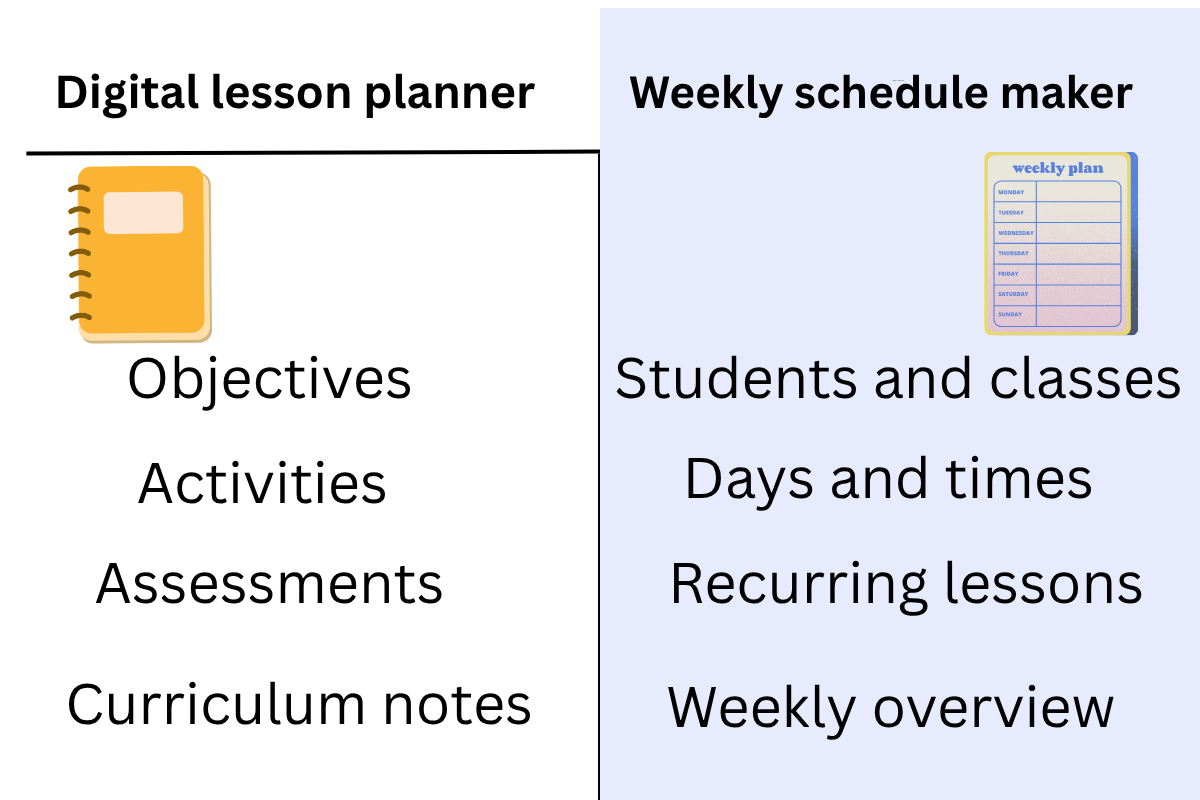
Neither category is automatically better. The right choice depends on whether your main difficulty is preparing lesson content or organizing the recurring timetable around it.
Which type of digital planner do you need?
You need a lesson planner if you are developing lesson content
Choose a traditional lesson planner when you need a structured place for objectives, activities, curriculum standards, resources, and assessments. This is usually the better fit for classroom teachers who must document detailed plans for each subject or submit plans for review.
You need a schedule maker if you are organizing recurring lessons
Choose a weekly schedule maker when your main challenge is arranging students, classes, subjects, and time slots. This is common for tutors and specialist teachers whose teaching content may be stored elsewhere but whose weekly timetable changes as students join, leave, cancel, or move to another time.
If you are constantly opening individual calendar events to understand your week, a visual timetable may be more useful than another detailed lesson-planning form. Our guide to planning recurring weekly lessons without a calendar app explains why general calendars can become awkward for this kind of work.
You may need both tools
Many teachers need both content planning and schedule planning. You might prepare the lesson itself in a document, notebook, or lesson-planning app, then use a separate weekly schedule to show when every class takes place.
Keeping the two functions separate can make the workflow clearer. The lesson planner holds the instructional detail. The schedule maker remains a clean operational view of the week.
Features to look for in a weekly digital planner
If weekly organization is your priority, the longest feature list is not necessarily the most useful one. Look for features that reduce the effort required to understand and update your timetable.
A clear weekly grid
A weekly grid should show days, time slots, students, and subjects without forcing you to open each entry. You should be able to look at the timetable and understand the shape of the week immediately.
A recurring-first structure
General calendar apps treat a recurring lesson as an event that has been instructed to repeat. A teacher-focused schedule should treat the weekly pattern as the starting point. The structure should remain in place until you decide to change it.
Simple editing
Adding a student, changing a time slot, or clearing an entry should not require editing a complicated recurrence rule. This matters most when a timetable includes several students or subjects. See our guide to creating a class schedule for multiple students for a practical approach.
Offline access
Cloud-based tools are convenient, but they also depend on internet access, accounts, and the continued availability of the service. An offline planner remains accessible during connection problems and can keep schedule data on your own computer.
A pricing model that fits a basic weekly task
Teachers should consider whether a monthly or annual subscription is justified for a timetable they update occasionally. Free tiers and one-time-purchase options can be more practical when the schedule itself is straightforward and recurring.
Backup options
Locally stored schedules should be backed up. Export and import features make it easier to protect your timetable and move saved information when necessary.
Where ScheduleMaker fits
See your recurring teaching week at a glance
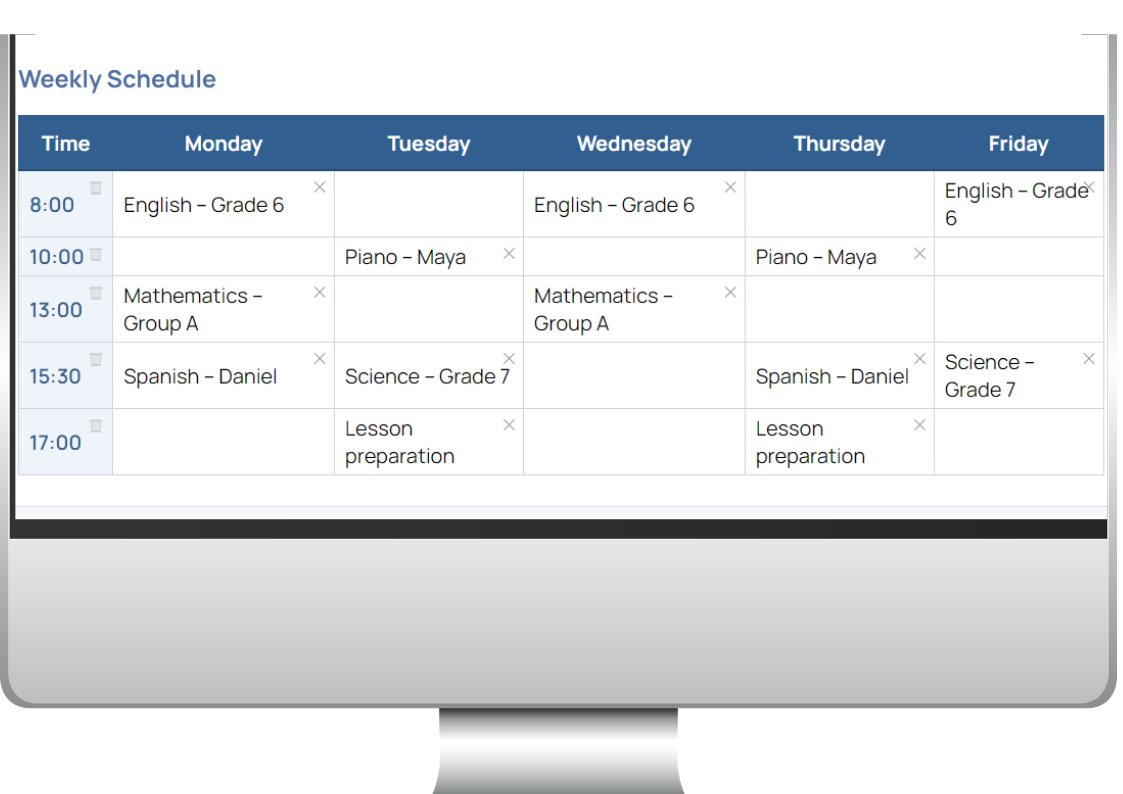
ScheduleMaker is not an AI lesson generator, standards tracker, gradebook, or tool for writing detailed lesson plans. It is a focused Windows desktop application for organizing recurring weekly schedules.
Teachers and tutors can create time slots, add students or lessons, and arrange them across a visual weekly grid. The app works offline after download, does not require an account, and stores schedule data locally on the computer.
The free version supports up to six time slots, which allows a teacher or tutor to try the core scheduling workflow. The Pro version removes that limit and adds import and export functionality. Pro is a one-time purchase rather than a recurring subscription.
This makes ScheduleMaker a suitable companion to a lesson-planning system. Keep detailed instructional plans wherever they work best for you, while ScheduleMaker provides the clean weekly view showing when each lesson takes place.
How to combine lesson planning with weekly scheduling
A simple two-part workflow keeps both kinds of planning manageable:
- Build the weekly structure. Add your regular students, subjects, days, and time slots to the schedule.
- Prepare lesson content separately. Use your preferred lesson planner, document, or notebook for objectives and activities.
- Use the schedule as your weekly map. Check the timetable to see which lesson plan is needed next.
- Update only what changes. Adjust individual schedule entries when a student or class moves, without rebuilding the entire week.
- Review your available time. Use open blocks for preparation, administration, or focused work. The same structure can support time blocking for teachers.
This separation prevents a detailed lesson-planning system from becoming an overcrowded calendar, while ensuring that the weekly schedule stays simple enough to scan quickly.
Choose the tool that matches the problem
A digital lesson planner for teachers is the right choice when the primary task is developing and documenting lesson content. A weekly schedule maker is the better choice when the problem is organizing recurring students, subjects, and time slots.
If both problems are present, you do not need to force one tool to do everything. Use a lesson planner for instructional detail and a schedule maker for the weekly structure. Each tool stays focused, and your workflow becomes easier to understand.
If recurring weekly scheduling is the part you want to simplify, you can download ScheduleMaker for Windows and build a six-slot schedule with the free version. No account or subscription is required.
Frequently asked questions
What is the difference between a lesson planner and a schedule maker?
A lesson planner helps prepare what will be taught, including objectives, activities, resources, and assessments. A schedule maker organizes when lessons occur and displays students, subjects, days, and time slots across the week.
Can a digital lesson planner create my weekly timetable?
Some lesson planners include calendar or weekly-view features, but their main purpose is usually lesson content. If your priority is a clear recurring timetable, a dedicated weekly schedule maker may provide a simpler view.
Does ScheduleMaker write lesson plans?
No. ScheduleMaker does not generate objectives, activities, assessments, or curriculum content. It organizes recurring students or lessons within a visual weekly schedule.
Can teachers use a lesson planner and ScheduleMaker together?
Yes. A teacher can prepare instructional content in a lesson planner and use ScheduleMaker to organize when each class, student, or subject appears during the week.
Does ScheduleMaker work offline?
Yes. ScheduleMaker is a Windows desktop application that works offline after download and stores schedule data locally on the computer.